








![Earn Crypto: The Ultimate Guide to Online Income with Digital Currency Payments [ E-book 2024 ]](https://digitfile.com/wp-content/uploads/2024/03/7.webp)
![Successful Investment: Mastering the Art of Financial Growth [ e-book 2024]](https://digitfile.com/wp-content/uploads/2024/03/71.webp)
![Achieve Brilliance: Strategies for Academic Success [E-book 2024]](https://digitfile.com/wp-content/uploads/2024/03/8l.webp)
Introduction
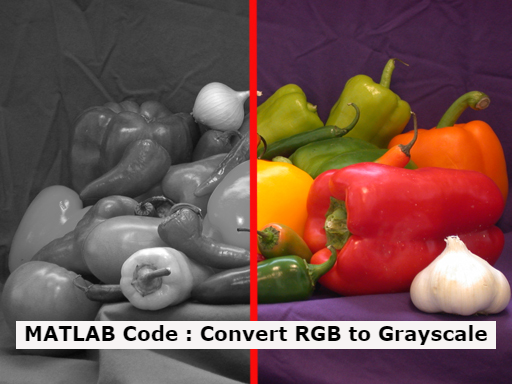
Converting RGB image to Grayscale in MATLAB is a fundamental step in image processing. Grayscale images simplify computations and are widely used in applications like object detection, image segmentation, and feature extraction. MATLAB provides various methods to achieve this conversion efficiently.
Why Convert RGB to Grayscale?
RGB images contain three color channels: Red, Green, and Blue. While these channels provide color information, they increase computational complexity. Converting to grayscale reduces data size and processing requirements while preserving essential visual details.
Additionally, many computer vision and machine learning algorithms require grayscale images as input. Working with grayscale images enhances processing speed and memory efficiency, making them a preferred choice in various domains, including medical imaging, security surveillance, and facial recognition. Working with grayscale images enhances processing speed and memory efficiency, making them a preferred choice in various domains, including medical imaging, security surveillance, and facial recognition.

Methods to Convert RGB image to Grayscale in MATLAB
There are multiple ways to convert an RGB image to grayscale in MATLAB, including built-in functions and manual calculations.
1. Using the rgb2gray Function
MATLAB provides a straightforward function, rgb2gray, to convert RGB images to grayscale.
% Read an RGB image
rgbImage = imread('example.jpg');
% Convert to grayscale
grayImage = rgb2gray(rgbImage);
% Display the images
subplot(1,2,1); imshow(rgbImage); title('Original RGB Image');
subplot(1,2,2); imshow(grayImage); title('Grayscale Image');
imread(filename): Reads an image file into MATLAB.rgb2gray(image): Converts an RGB image to grayscale.subplot(m, n, p): Divides the figure into anm × ngrid and places a plot in positionp.imshow(image): Displays an image.title(text): Sets the title of the plot.
This method is highly optimized and should be the first choice for most applications.
See also:
Image Edge Detection Using Fuzzy Logic
2. Manual Conversion Using Luminance Formula
If you need more control, you can manually apply the luminance method:
% Read an RGB image
rgbImage = imread('example.jpg');
% Extract RGB channels
R = double(rgbImage(:,:,1));
G = double(rgbImage(:,:,2));
B = double(rgbImage(:,:,3));
% Apply the standard luminance formula
grayImage = 0.2989 * R + 0.5870 * G + 0.1140 * B;
% Convert back to uint8
grayImage = uint8(grayImage);
% Display the grayscale image
imshow(grayImage);
title('Grayscale Image');double(image): Converts an image to double precision for calculations.uint8(image): Converts the processed image back to 8-bit integer format.
This approach allows for modifications if needed, such as adjusting weights for different lighting conditions.
3. Average Method
The averaging method is one of the simplest ways to convert an RGB image to grayscale. This method calculates the mean of the three color channels (Red, Green, and Blue) for each pixel and assigns this average value to the grayscale image. Since it treats all channels equally, the resulting image may not always represent the true brightness as perceived by the human eye, but it provides a quick and computationally efficient solution. Another simple method is to take the average of the three channels:
% Convert RGB to grayscale using averaging
grayImage = mean(rgbImage, 3);
grayImage = uint8(grayImage);

% Display the grayscale image
imshow(grayImage);
title('Grayscale Image - Average Method');
mean(image, dim): Computes the mean along the specified dimension dim.
While this method is computationally efficient, it does not consider the different sensitivities of the human eye to different colors. The human eye is more sensitive to green and less to blue, which is why the luminance method provides a more perceptually accurate grayscale image. However, if speed and simplicity are priorities, the averaging method remains a viable choice, especially for real-time processing applications.
4. Weighted Sum Method
Another method is to use a weighted sum approach, assigning different weights to each color channel based on the human eye’s sensitivity:
% Read an RGB image
rgbImage = imread('example.jpg');

% Convert to double for precision
rgbImage = double(rgbImage);

% Custom weights for RGB channels
weights = [0.3, 0.6, 0.1];

% Compute grayscale image
grayImage = weights(1) * rgbImage(:,:,1) + weights(2) * rgbImage(:,:,2) + weights(3) * rgbImage(:,:,3);

grayImage = uint8(grayImage);

% Display the grayscale image
imshow(grayImage);
title('Grayscale Image - Weighted Sum Method');
This approach allows fine-tuning based on specific image characteristics and application requirements.
Applications of Grayscale Conversion
- Image Compression: Reducing data size by eliminating color information.
- Edge Detection: Grayscale images enhance feature detection algorithms like Sobel and Canny edge detection.
- Machine Learning & AI: Many computer vision models prefer grayscale images for training due to lower complexity.
- Medical Imaging: MRI and X-ray images often use grayscale to enhance details.
- Optical Character Recognition (OCR): Grayscale preprocessing improves text recognition accuracy.
- Facial Recognition: Most face detection systems operate on grayscale images to reduce computational load.
- Security and Surveillance: Converting RGB to grayscale simplifies motion detection and anomaly recognition in surveillance footage.
Performance Considerations
When choosing a grayscale conversion method, consider the following factors:
- Processing Speed:
rgb2grayis the fastest and most optimized method in MATLAB. - Accuracy: The luminance method provides a more perceptually accurate grayscale image.
- Flexibility: Custom weight-based methods offer flexibility for different applications.
- Memory Usage: Grayscale images consume less memory, making them ideal for embedded and mobile applications.
Conclusion
Converting RGB images to grayscale in MATLAB is a crucial step in image processing. MATLAB provides efficient functions like rgb2gray, along with manual methods for custom implementations. Choosing the right approach depends on the specific application and computational needs.
By optimizing grayscale conversion techniques, you can enhance image processing workflows and improve the performance of computer vision applications.
Keywords:
RGB to Grayscale, MATLAB Image Processing, Convert RGB to Grayscale, MATLAB rgb2gray, Image Processing MATLAB, Grayscale Conversion MATLAB